RHGTimecard
RHG Time Card
is now available for download
for the low price of 1.99!
click the button below to view and get your copy of the RHG Time Card app on itch.io!
App features:
If you're an entrepreneur like me you need a way to keep track of your bussiness hours! RHG Timecard is an app for small business and work at home entrepreneurs that can keep track of yours and up to 12 additional employees hours, breaks, overtime hours, Sunday and holiday hours, and weather or not they started work on time. You can also use it for recording travel time, fieldwork time, or tons of other things you need to keep a time record of. There's also an inbox messaging feature where you can send, receive and reply to interdepartmental mail. The manager can check the week or year's progress at any time, which creates a timecard displaying the employee's current hours. However, when the employee finishes a week or year, the week or year's timecard is re totaled and overwritten with the completed week or year's results, as it should.
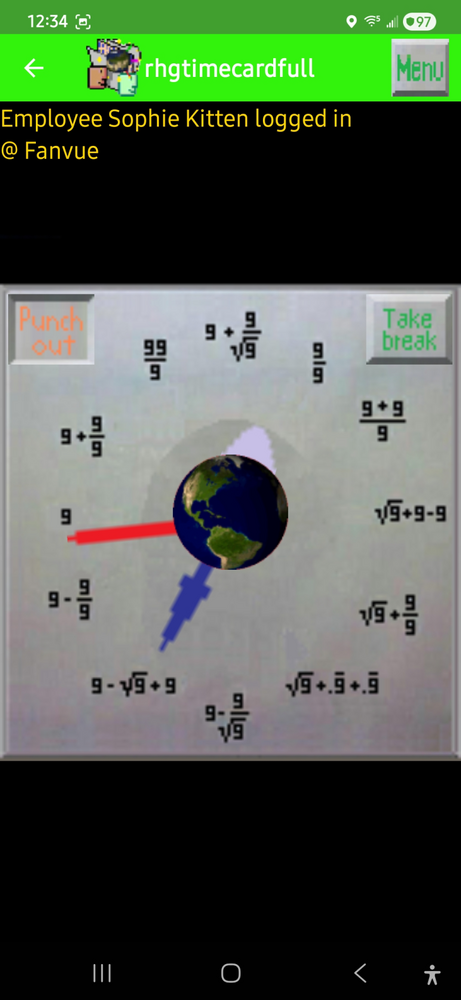
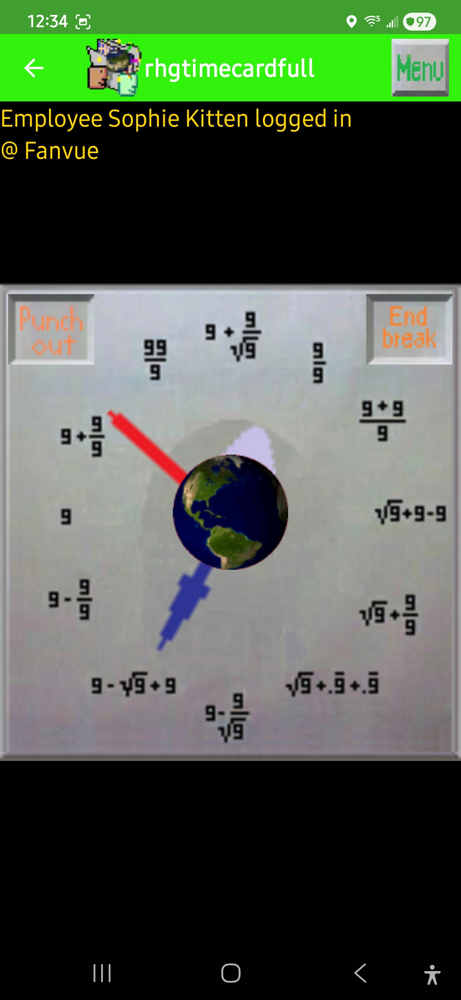
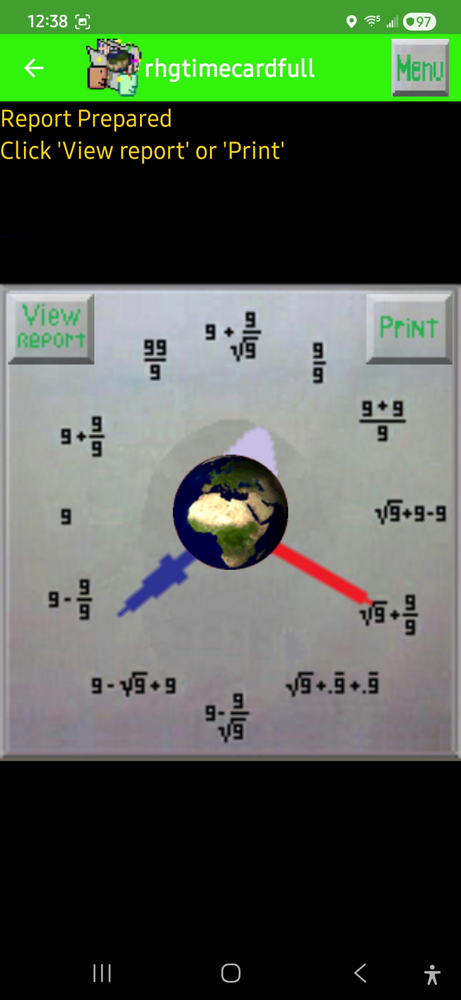
RHG Timecard has a unique look and employee incentive with an 'active earth' icon in the center that moves every 1/2 hour, with the front side always representing where on the globe 12 o'clock noon is. The hidden incentive is when you open the app and the earth hasn't yet turned to your accustomed punch in time's position you are still early and will be inclined to punch in before it switches.
RHG Timecard also works in all time zones as it sets the correct time and 12 noon positioning of the Earth animation. You can log in, punch in, then shut down the app on your phone and even log out, but when you start RHG Timecard back up again and log in, everything's still as it was, if you were punched in you are still punched in, or if you were on break you will still be on break until you stop break or punch out. You as manager also have the ability to set all names, company names, passwords holiday dates, overtime settings, and work start time customizable for each day as well as late allowance time for yourself and your employees. Also you can view all timecards, and print out or view any week, or the entire year for any employee you choose as the records will be permanently stored including year changes so you can keep your records indefinitely.
RHG Timecard - Simple Employee Time Tracking App
General use
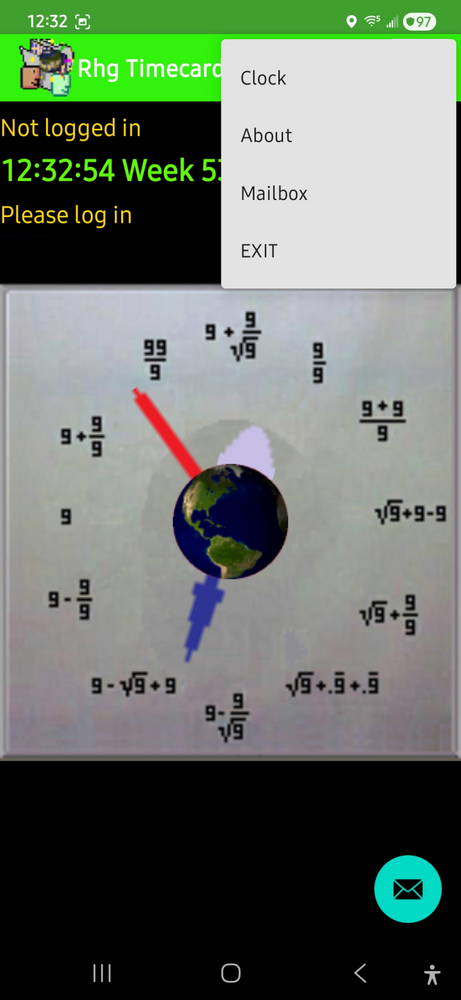
Open the app and tap the menu button on the top right and below that the first menu comes up with 4 choices:
1. Punch Clock - Brings you to the log in and punch in page.
2. About - Brings up the app information and instructions page.
3. Mailbox - Click this to open your mail, you must be logged in first. You can also click the envelope button on thr bottom right of the screen to access your mail.
4. EXIT - Exits the app, or use your device's back button.
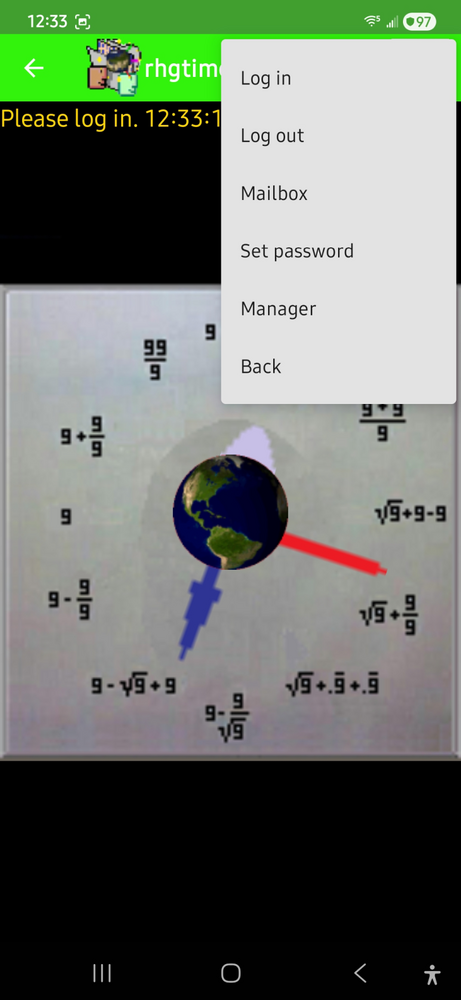
On the clock page tap the menu button on the top right and 6 choices come up, Log in, Log out, Manager ,Mailbox, Set password, and Back.
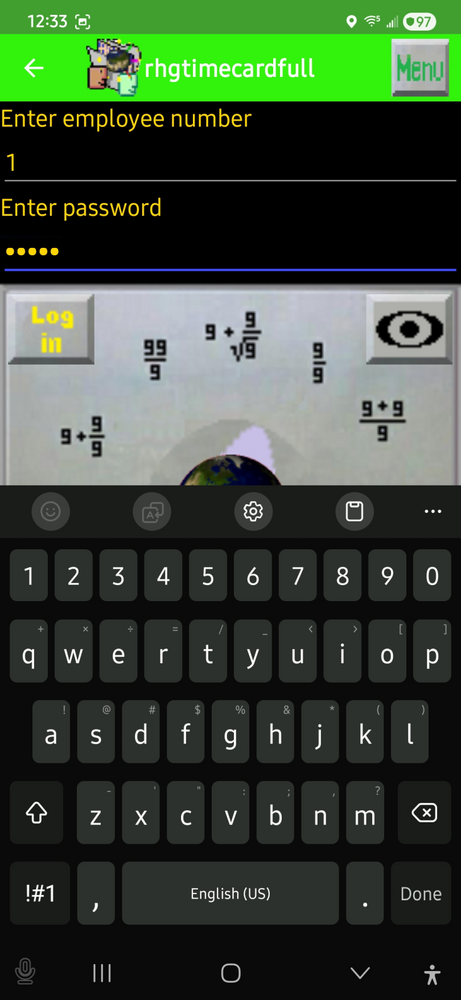
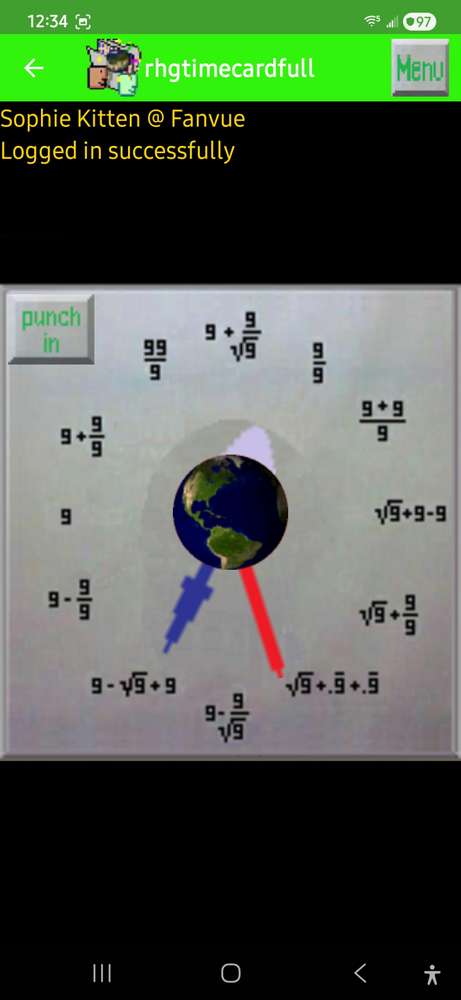
1. Log in- You will be asked your employee number (0 - 12) , then your password and if correct logs you in so you can punch in, out, take break or come back from break. If this is the first time you have logged in, your timecard will be set up and you will be asked to log out then log back in to start your first day of work.
2. Log out - Logs you out. Note that logging out has no effect on whether you are punched in or on break or othersise.
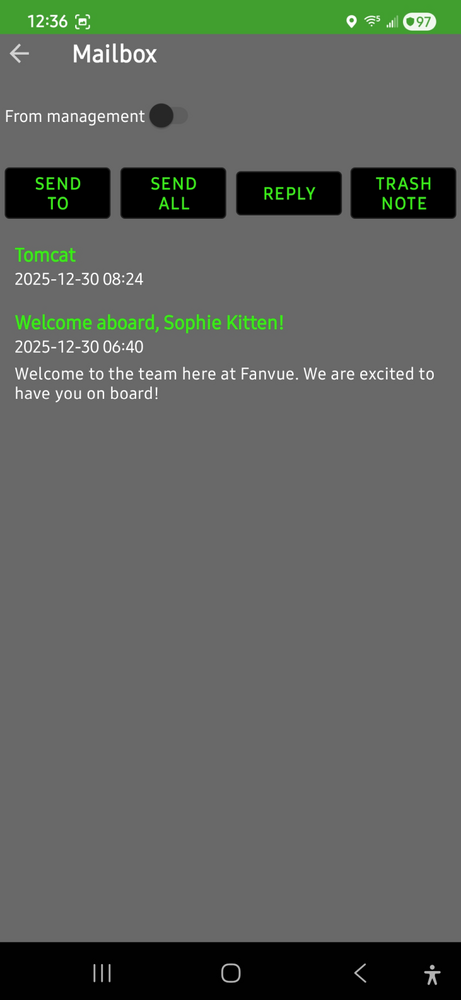
3. Mailbox - here you can read and send interdepartmental emails. You must be logged in first. You can also click the envelope button on thr bottom right of the screen to access your mail.
4. Manager - You will be asked for your password and if correct logs you in so you can keep track of your employees and company(s).
5. Change Password - You must already be logged in to use this feature. Enter your current password, and if correct, you can then enter a new one.
6. Back - Return to the app's landing page, you can also click the back arrow on the top left of the app screen, or use your device's back button.
Manager settings: Setting up your employees and yourself
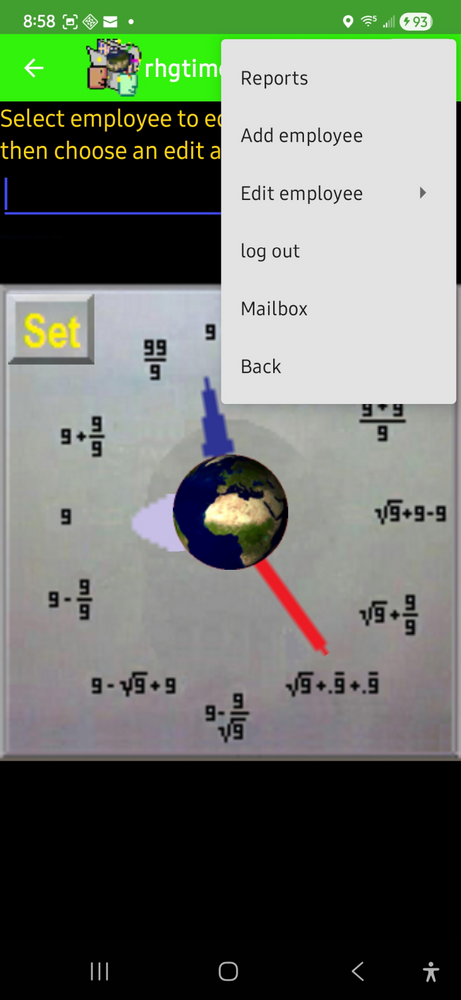
Tap the menu button on the top right and select Clock. On the clock page tap the menu button on the top right and select Manager and 6 choices come up - Reports, Add employee, Edit employee, Log out, Mailbox, and Back.
1. Reports: Check current week or year hours - week, employee must have completed 1 work day, or if checking current year, must have completed 1 work week. Press Set to start. Enter employee number you want to check hours for. Enter 1 to check week or 2 to check year. press view report or print to get the report. Reports are saved for you to view or print out at any time.
2. Add employee - Tap enter and type the employee's number which can be from 0 - 12 and tap set. Note that employee # 0 and the corresponding password is reserved for you the manager. Complete all the below settings through #7 to successfully create your new employee.
1. Employee name - Next type the employee's name and press set.
2. Company name - Now enter the employee's company name and tap set.
3. Employee password- Must be set, no blank passwords are allowed. The password can be any letters numbers and / or symbols.
4. Next you can set the starting time for work for each employee, Enter the hour in the top text field, and minute in the bottom one, and press set.
5. You can then choose if employees are allowed to be late. the current setting will be displayed below. Tap the yes or no buttons to change the setting. If you choose yes you will be asked how long, in minutes (0 - 59), they are allowed to be late beyond their designated starting time. Press set to confirm.
6. Overtime settings - Here with the Yes and No buttons you can set things like whether to record overtime, and hours worked after midnight at the end of the week (even during a year change) to the completed week, or to the following week, and weather to record Sundays and holidays as overtime, and define the holiday dates.
7. To define holiday dates, enter the month number followed by a comma, then the day of the month also followed by a comma even if it isa the last holiday you're setting, and then press set. Example: Entering 1,1,7,4,12,25, would be Jan 1st July 4th and Dec 25th.
Your new employee is now saved, but it is important that on their first day of work to have them log in, and log back out to finish the setup process including starting date of employment, and then log in and punch in because that starts the baseline time that RHG Timecard relies on to make their timecards. This is a one time only deal and never has to be done again for that employee.
If you make a mistake adding the employee, just click the 'Edit employee' button for most editing choices, or the 'Add Employee" button again and create the employee again from scratch.
3. Edit Employee - tap to expand the sub menu which has 7 choices:
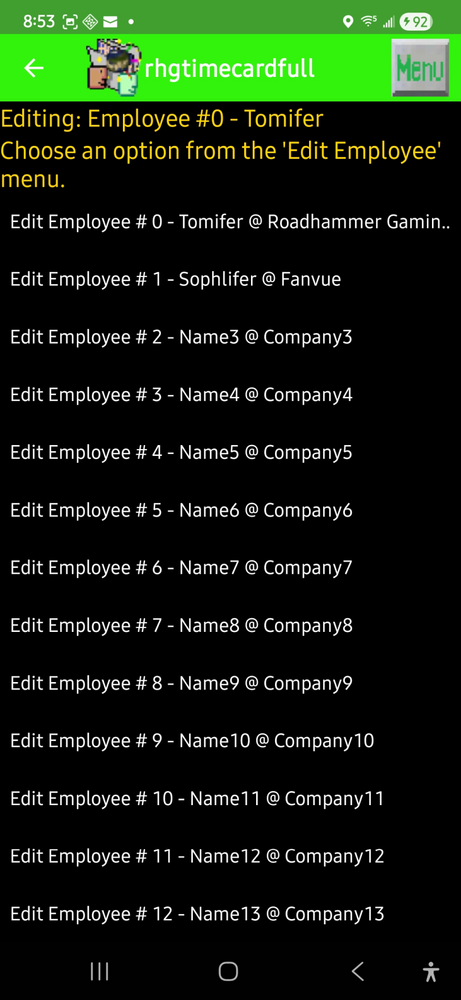
1. Find Employee -Do this first, Click to bring up a menu with all the employees listed, click one to set the employee you want to change data for. Then click the menu button again and select 'Edit employee' button to bring up the editing choices sub menu.
2. New name - change the employee's name
3. New company - change the employee's company
4. New password - You as the manager can change the employee's password without knowing what the old password was, this is useful for recovering an account for an employee if they have lost their old password.
5. New hours - Set the start time for each work day
6. Permissions - set weather an employee can be late
7. overtime settings - all overtime settings can be modified here.
back in the manager main menu, the last 2 choices are:
4. Log out - Logs the manager out and exits the menu.
5. Back - Return to RHG Timecard's home page
WAIVER
This app was written and created by me and may not be sold for any type of profit. I am not to be held liable or responsible for loss of wages or time due to any fault, use, or misuse of this app.
Left click to spin the carousel, right click (long press on mobile) to view the full image